
SDK Setup
After installing CiaoSDK via Package Manager, configure it through the SDK Setup window.
Open the Setup Window
In Unity, go to Ciao Games → SDK Setup.
Setup Steps
- Enter your CiaoAppID (provided by Ciao Games).
- Click Download Configuration. This downloads and decrypts your studio configuration.
- For each module (Ads, MMP, Analytics, Anti-Cheat):
- Click Install to download the vendor SDK.
- Click Activate to enable the module in your project.
- For LevelPlay Ads, click Manage Networks to configure ad networks through LevelPlay's built-in UI.
IronSource, Google AdMob, Mintegral, Meta, Chartboost, Digital Turbine (Fyber), InMobi, Pangle, Unity Ads, Liftoff, Yandex, Ogury.
EDM4U
Singular (MMP) and ByteBrew (Analytics) require External Dependency Manager for Unity (EDM4U). If EDM4U is not already present in your project, CiaoSDK will install it automatically.
app-ads.txt
Add the following app-ads.txt link to your developer website:
https://ciao.games/app-ads.txtWe recommend using https://ciao.games as your developer website. If you already have your own developer website, copy all entries from our app-ads.txt and paste them into yours.
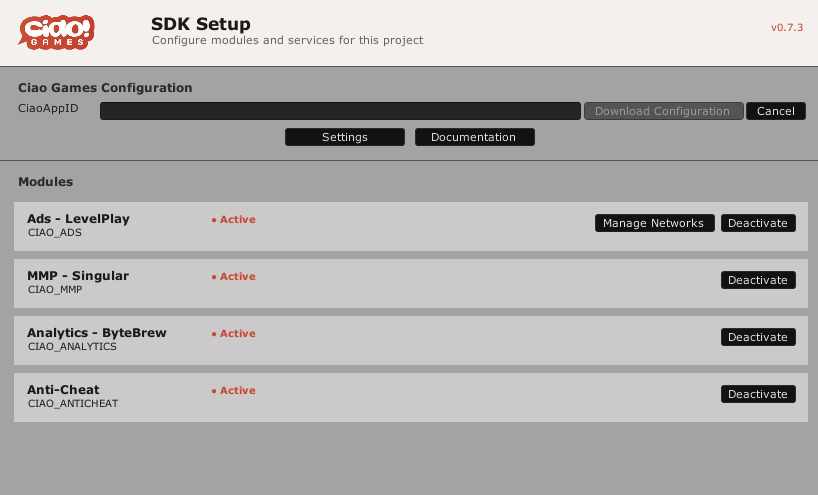
CiaoSDK Setup Window
AdMob Configuration (Unity)
Check also: Unity LevelPlay official guide
AdMob's native SDK requires its App ID in each platform's native config file. This is required on every adapter version, regardless of what's configured in the LevelPlay dashboard.
The LevelPlay dashboard entry (Monetize → SETUP → SDK Networks → Define) only feeds LevelPlay's mediation and reporting - it does not populate your AndroidManifest.xml or Info.plist.
Both steps below are mandatory and independent of each other.
<meta-data
android:name="com.google.android.gms.ads.APPLICATION_ID"
android:value="ca-app-pub-XXXXXXXXXXXXXXXX~YYYYYYYYYY" />
Replace the value with your AdMob App ID (from your AdMob dashboard). Not doing this results in a crash on AdMob initialization - there is no adapter version that skips this step.
Add to your app's Info.plist:
<key>GADApplicationIdentifier</key>
<string>ca-app-pub-XXXXXXXXXXXXXXXX~YYYYYYYYYY</string>
Replace the value with your AdMob App ID. Without this, the iOS build crashes at launch with GADApplicationVerifyPublisherInitializedCorrectly.
Updated about 1 month ago